How to look inside a G-code file without opening a slicer
August 14, 2026
You download a 3D model and the author has included a finished .gcode. Or a colleague sends you a file saying "the supports look odd on this one". And you want a quick answer to what's actually in it.
You could open it in a slicer. PrusaSlicer has its own G-code Viewer and it's free. But between launching it and waiting for the file to load, you spend more time than you meant to give a single question like "how is this filled inside".
With Preview3D you select the file in the Finder and press space: you see the preview image the slicer embedded, plus the print time, filament use and material — which usually settles the question of what the file is. And if you need more than that, open it and inspect the toolpath the way you would in a slicer.
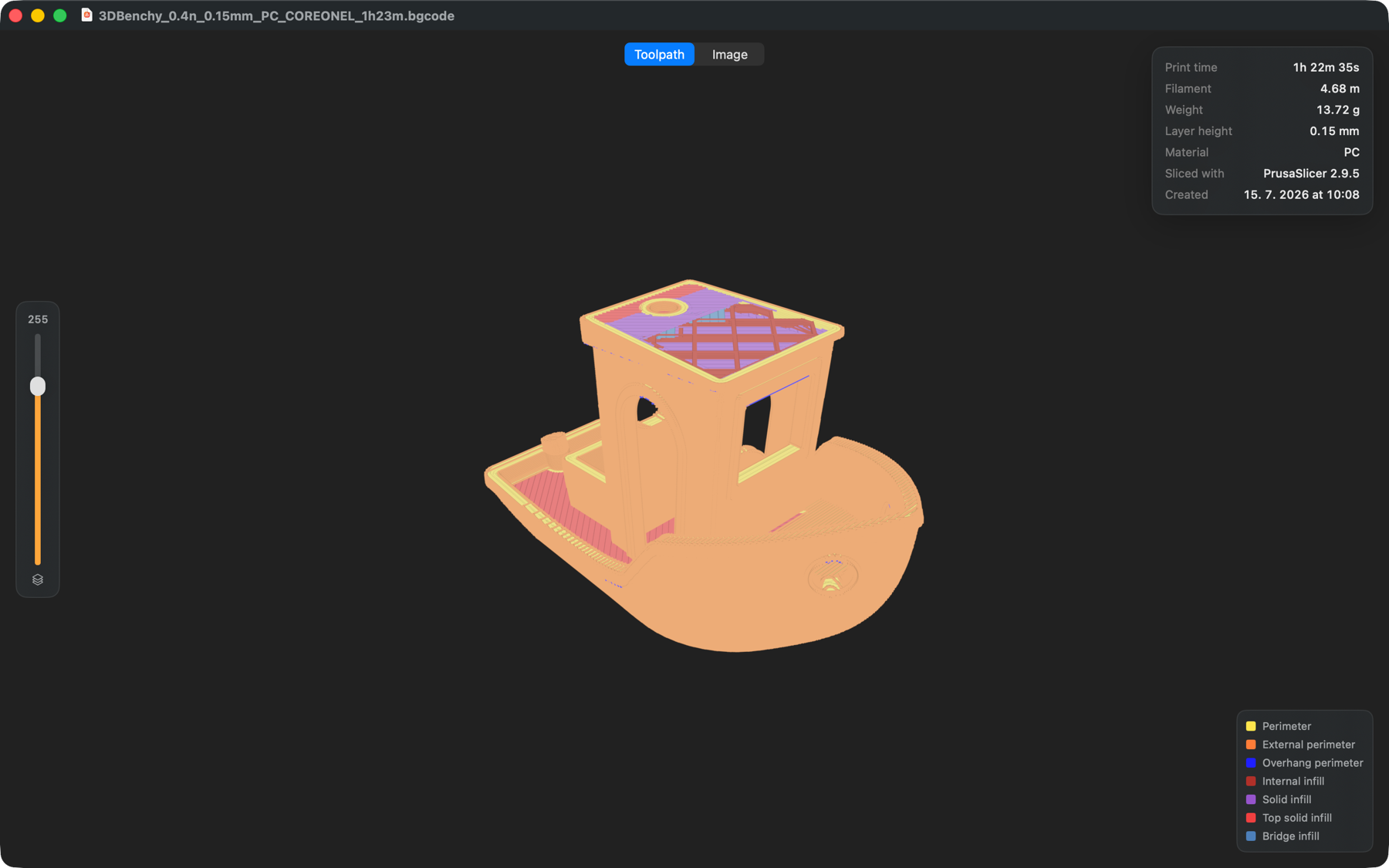
The colours aren't decoration
The print is coloured by what's being printed at that moment. Perimeters, external perimeters, infill, solid infill, bridges, supports — each type has its own colour, and the legend in the bottom right says which is which.
We use the same palette as PrusaSlicer. If you're used to external perimeters being orange and solid infill purple, there's nothing to relearn — it looks like the preview you exported the file from.
Preview3D doesn't guess the colours from geometry. It reads them from the ;TYPE: comments the slicer writes into the file, so they match what the slicer actually intended. Besides PrusaSlicer it understands the markers used by OrcaSlicer, Bambu Studio, Slic3r and Cura.
The layer slider
There's a vertical slider on the left. Drag it down and the print is cut open — you see what it looks like at any height. This is how you answer the questions you can't settle from the outside: is there enough solid infill under the top surface? How dense is the infill really?
On a print with two thousand layers the slider behaves the same as on twenty.
Extrusions have their real width
Beads aren't drawn as hairlines but at the width the slicer gave them, lit and rounded. The difference shows up most on top surfaces — you can tell whether neighbouring beads touch or leave a gap between them.
The stats from the header
Top right is a card with what the slicer noted in the header: print time, filament in metres and grams, layer height, material, and which slicer produced the file. And if the slicer embedded a preview image — PrusaSlicer does this for .gcode as well as binary .bgcode — you can switch from the toolpath to it at the top.
The same on iPad
The G-code viewer isn't Mac-only. It works the same on iPad, layer slider included. Buying Preview3D gets you both the Mac and the iPad version.
Preview3D opens .gcode and .bgcode alongside STEP, STL, OBJ, 3MF and other formats — in a window, through Quick Look, and as Finder thumbnails. $9.99 once, for Mac and iPad, fully offline.